Use Codex with Anonymization
May 11, 2026
Codex is OpenAI's agentic AI service that operates directly on files and folders on your computer, performing research, analysis, drafting, coding, and complex multi-step tasks autonomously. It's a powerful tool, but that file-level access creates a real question for anyone handling sensitive materials: how do you give an AI agent access to your documents without exposing confidential data?
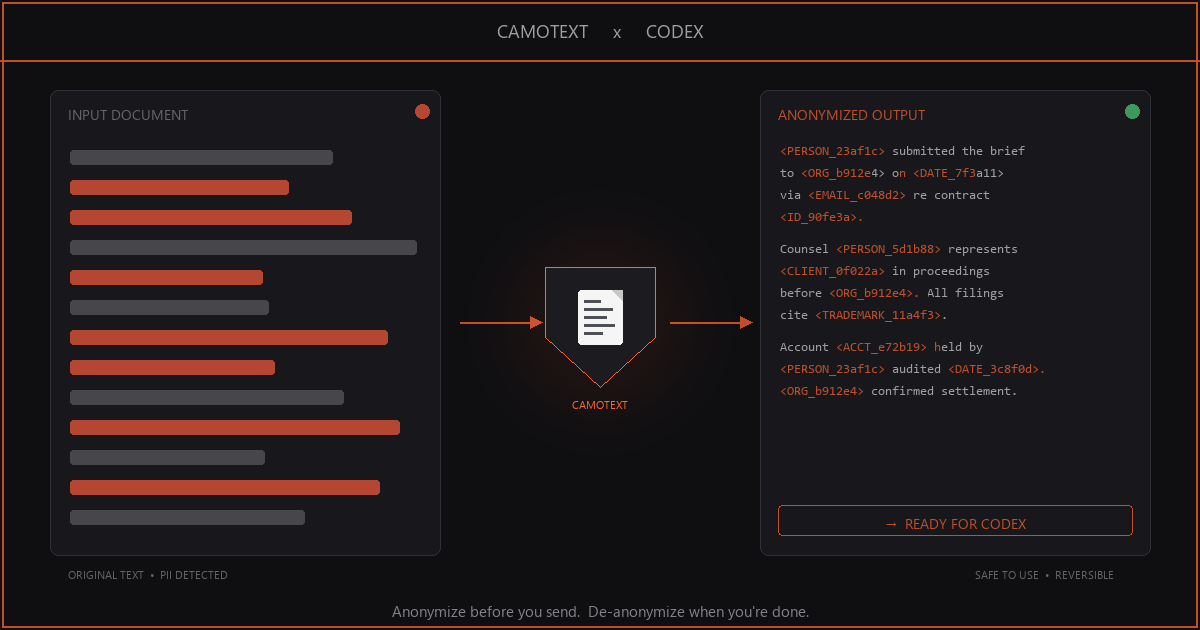
The answer is straightforward. Anonymize your documents locally before Codex ever sees them. By using CamoText Pro to strip metadata and replace PII and sensitive terms with hashed placeholders, you give Codex everything it needs while keeping confidential details under your control. The workflow is simple, repeatable, and preserves both confidentiality of materials and effectiveness of Codex.
This workflow is applicable to any agentic AI service that operates on files and folders on your computer, but we use Codex as an example due to its current widespread adoption.
Why This Matters
Agentic AI services like Codex differ from chat-based AI in a critical way: they don't just receive prompts and context files — they read, create, and modify files in the folder(s) to which you've granted access on your computer. That's enormously useful for tasks like contract revisions, document drafting, codebase changes, or creating presentations or reports. But if those files contain client names, deal terms, proprietary data, or other sensitive information, that data flows to OpenAI's infrastructure. If third-party plugins or connectors are enabled, that data may also flow to the plugin provider's infrastructure.
Even with strong provider privacy policies, once data leaves your device it's subject to the provider's infrastructure, retention policies, security posture, and potential legal process. These can present substantial concerns for confidentiality, privilege, compliance, and ethics.
CamoText solves this by anonymizing documents fully locally, before they ever reach Codex's accessed folder or OpenAI's LLMs. The hashed placeholders (like <PERSON_4f6bb1>) maintain document structure and readability so Codex can still analyze, draft, and reason effectively (Codex will simply use these placeholders as if they were the actual names and terms). Because CamoText strips all file metadata as well (even when preserving formatting), there's no hidden author info or embedded data leaking through either.
Anonymized Codex Workflow
1 Prepare Prompt / Instructions
Update your prompt template or AGENTS.md to note that hashed placeholders may appear in documents.
2 Create Codex Folder
Make a dedicated, clean folder on your desktop. This is what Codex accesses — never your original documents.
3 Configure CamoText
Set Priorities (client names, custom tags), formatting options, and category exclusions. Save settings to your Original Folder.
4 Anonymize
Load file(s), run Anonymize or Batch Anonymize. CamoText detects PII, replaces with hashed tokens, and strips metadata.
5 Review & Refine
Check the Anonymization Key for false positives. Inspect Output for anything missed. Highlight & Anonymize stragglers, or add Priorities and re-run.
6 Save Outputs
Save anonymized output file(s) to the Codex Folder. Optionally save key(s) to your Original Folder (for de-anonymization later, if you want to use Codex's output files).
Codex — OpenAI Infrastructure
7 Run Codex
Give Codex access to the Codex Folder only, provide your prompt with your client's anonymized tag and other task-specific details, and let it work.
Step-by-Step Details
-
Update Your Prompt Template or Instructions
If you use structured prompt templates or AGENTS.md files for Codex tasks (e.g., "agreement-analyzer" for contract review, "doc-drafter" for drafting from deal terms), add a note that documents may contain hashed placeholders in place of names or other sensitive text, as well as other task-specific details to be completed case-by-case.
Here's an example provision within a prompt template for contract analysis:
Prompt Template Excerpt The agreement: the full document text, upload, or a sufficiently detailed description
The agreement type: e.g., MSA, NDA, SaaS subscription, commercial lease, employment agreement, licensing deal, SOW, etc. (infer if obvious from the document)
The client: who you are representing / whose interests to prioritize
Client's role in the agreement if unclear: e.g., vendor, customer, licensor, tenant, employer
Any specific areas of concern: issues the client has flagged or wants prioritized (optional)
Any additional context: deal background, counterparty relationship, negotiation posture, commercial constraints (optional)
Note: Certain PII or sensitive text may be hashed (for example, <CLIENT_23af1c> as the specified client) or redacted in the provided document(s). Do not flag these as issues; if any blanks exist for material terms, note this in one sentence in a final summary.Tip: This prompt specification keeps the workflow re-usable, by specifying the per-task details like the hashed client name and context. -
Create a Dedicated Codex Folder
Create a new, empty folder on your desktop specifically for this Codex session. We'll call this the "Codex Folder."
Important: Do not use directories containing your original (unanonymized) documents, or folders with nested/linked files that shouldn't be touched. Codex can read and write within the folder you give it access to, so keep it isolated.📁 Desktop/ 📁 Codex-ProjectX/ ← Codex Folder (clean, for anonymized files only)
📁 Documents/ 📁 ProjectX-Originals/ ← Original Folder (your authoritative docs, keys, settings) -
Configure CamoText Priorities
Open CamoText and go to User Settings → Priorities. This is where you can label specific terms with custom tags for specific contextual reference, if you want to.
For example, enter and custom-tag your client's name as "CLIENT" to ensure Codex knows who you are representing. You can also tag related entities with labels like:
- CLIENTCEO — the CEO's or key principal's name
- CLIENTSPV1 — a special-purpose entity
- COUNTERPARTY — the other side of the deal
The resulting hash will be auto-appended to your tags, like
<CLIENT_23af1c>.If tagging every entity feels tedious, you can skip custom tags and let CamoText's auto-detection handle them; just ensure they've been detected in the output. The auto-detected entities will be hashed with their category (e.g.,
<PERSON_4f6bb1>,<ORGANIZATION_8b42de>).Configure your other preferences in settings: formatting preservation preferences, tracked changes treatment, and any category exclusions (for instance, you might exclude DATE if dates aren't sensitive).
Save your settings to the Original Folder (the directory with your authoritative documents) — not the Codex Folder. This keeps your priority configuration and anonymization keys in the same secure location as your originals.
-
Load Files and Anonymize
With your settings configured, load your file(s) into CamoText for anonymization.
- Single file: Click Anonymize.
- Multiple files: Use Batch Anonymization to process an entire folder at once.
CamoText replaces detected PII with hashed placeholders. All file metadata (author and other embedded properties) and hyperlinks are stripped from the output.
-
Review and Refine
No automated detection is perfect, and confidentiality is subjective and contextual. Take a moment to review:
- Anonymization Key: Check for false positives — terms that were anonymized but don't need to be (e.g., a city name that isn't sensitive). Revert these with a click.
- Output text: Scan for anything that was missed — a name the model didn't catch, a proprietary term, a project code name. You can Highlight and Anonymize individual terms, or add them as Priorities and re-run the anonymization.
Tip: The first time you run this workflow for a particular client or project, the review step takes a few extra minutes. Once you've dialed in your Priorities and settings, subsequent runs are fast because CamoText will consistently catch the same terms. -
Save Outputs to the Codex Folder
Save the anonymized output file(s) only to the Codex Folder. Do not save the anonymization key(s) there: those map hashed tokens back to original terms and should stay secure.
- Output files → Codex Folder (this is what Codex sees)
- Anonymization keys → Original Folder (if you prefer to save them for your reference or later de-anonymization)
The output files are anonymized and metadata-free. Codex will see hashed placeholders where sensitive terms were, and clean files with no embedded authorship or revision history.
Later, you can use CamoText's De-Anonymize feature to reinsert original terms into any documents Codex produces or edits, directly in your Original Folder.
-
Run Codex
Give Codex access to the Codex Folder on your desktop. Provide your prompt — specifying your client (by tag, e.g., "CLIENT"), the task, and referencing the applicable instructions — and let it work.
Codex sees structurally complete documents with placeholder tokens. It can analyze clauses, draft language, flag risks, or produce summaries without ever seeing the underlying confidential details. Because you included the note about hashed placeholders in your prompt template, Codex will treat them as intentional and work around them seamlessly.
What Codex Sees vs. What Stays Private
Codex can still identify this as an MSA, analyze its structure, flag one-sided indemnification clauses, or draft a redline. It just can't see who the actual parties are, which is exactly the point.
Why Hashed Placeholders Preserve Codex Effectiveness
A common concern with anonymization is that it might degrade AI performance. In practice, CamoText's approach is designed specifically to avoid this:
- Structural integrity: Documents retain their full formatting, clause structure, paragraph flow, and logical relationships. Codex analyzes structure and substance, not names.
- Consistent tokens: The same entity always gets the same hash within a document or batch, so Codex can track references across sections (e.g., every mention of
<ORGANIZATION_8b42de>is the same entity). - Category visibility: Placeholder tags include the entity category (PERSON, ACCOUNT, DATE, etc.), giving Codex useful context about what type of entity each token represents.
- Custom labels: Priority-tagged terms like
<CLIENT_23af1c>or<CLIENTCEO_001ea2>give Codex even clearer context about roles and relationships.
The result: Codex's analytical and drafting capabilities remain fully effective without compromising confidentiality.
De-Anonymizing Codex Output
When Codex finishes its work, the output documents will still contain hashed placeholders. To produce final client-facing deliverables, either adjust your authoritative version in your Original Folder accordingly, or use CamoText's De-Anonymize feature to replace all hashed tokens with original terms:
- Open the Codex-generated document in CamoText
- Use the De-Anonymize feature to replace all hashed tokens with original terms, using the anonymization key from your Original Folder
- Save the document with restored terms to your Original Folder
Best Practices
- One local Codex Folder per project or session. Keep things clean and avoid mixing anonymized files from different matters.
- Always save settings and keys to your Original Folder. Never put anonymization keys in the Codex Folder — they're the map back to your real data.
- Invest a few minutes in Priorities on your first run. Custom-tagging your client and key entities up front pays off across every subsequent document in that matter.
- Use Batch Anonymization for multi-document projects. If Codex needs to cross-reference several agreements or memos, batch-anonymize them all with the same settings for efficiency.
- Re-run after edits. If you need to add more files to the Codex Folder mid-session, anonymize them with the same settings.
- Review is non-negotiable. Automated detection is excellent but not omniscient. Scan the output and key for subjectively sensitive terms and false positives.
Conclusion
Codex's file-level access makes it remarkably useful for professional workflows, but that same access requires thoughtful handling of sensitive materials. CamoText provides a simple, repeatable privacy layer: anonymize locally, give Codex the sanitized version, and de-anonymize the results when you're done.
The workflow takes minutes to set up and becomes faster with each use as your Priorities and settings are refined. You get the full analytical power of agentic AI without compromising the confidentiality your clients, patients, or business partners expect.